
من التصميم الرقمي إلى الحبر المطبوع: لماذا تكتسب مرحلة ما قبل الطباعة أهمية
في عالم الطباعة الأوفست الاحترافية، يُعد الانتقال من ملف رقمي على الشاشة إلى كتاب مادي أو صندوق أو مجموعة أوراق لعب مرحلة حاسمة. وعلى عكس الطباعة الرقمية، التي تتيح إجراء تعديلات سريعة ومنخفضة التكلفة، تتطلب الطباعة الأوفست إنشاء ألواح مادية وتستغرق وقتًا طويلاً في الإعداد. ويمكن أن يؤدي أي خطأ في ملف المخطوط — مثل أوضاع الألوان غير الصحيحة أو عدم وجود حواف التسييل — إلى تأخيرات في الإنتاج أو إعادة طباعة مكلفة.
بالنسبة إلى الناشرين المستقلين وأصحاب العلامات التجارية ومديري المشتريات، يُعد فهم المتطلبات الفنية للطباعة الصناعية أمرًا ضروريًا. فوجود ملف «جاهز للطباعة» مُعدّ بشكل جيد يضمن أن المنتج النهائي يتوافق مع رؤية المصمم، وأنه يمر بسلاسة عبر عملية التصنيع دون أي انقطاع.
1. وضع الألوان: تحويل RGB إلى CMYK
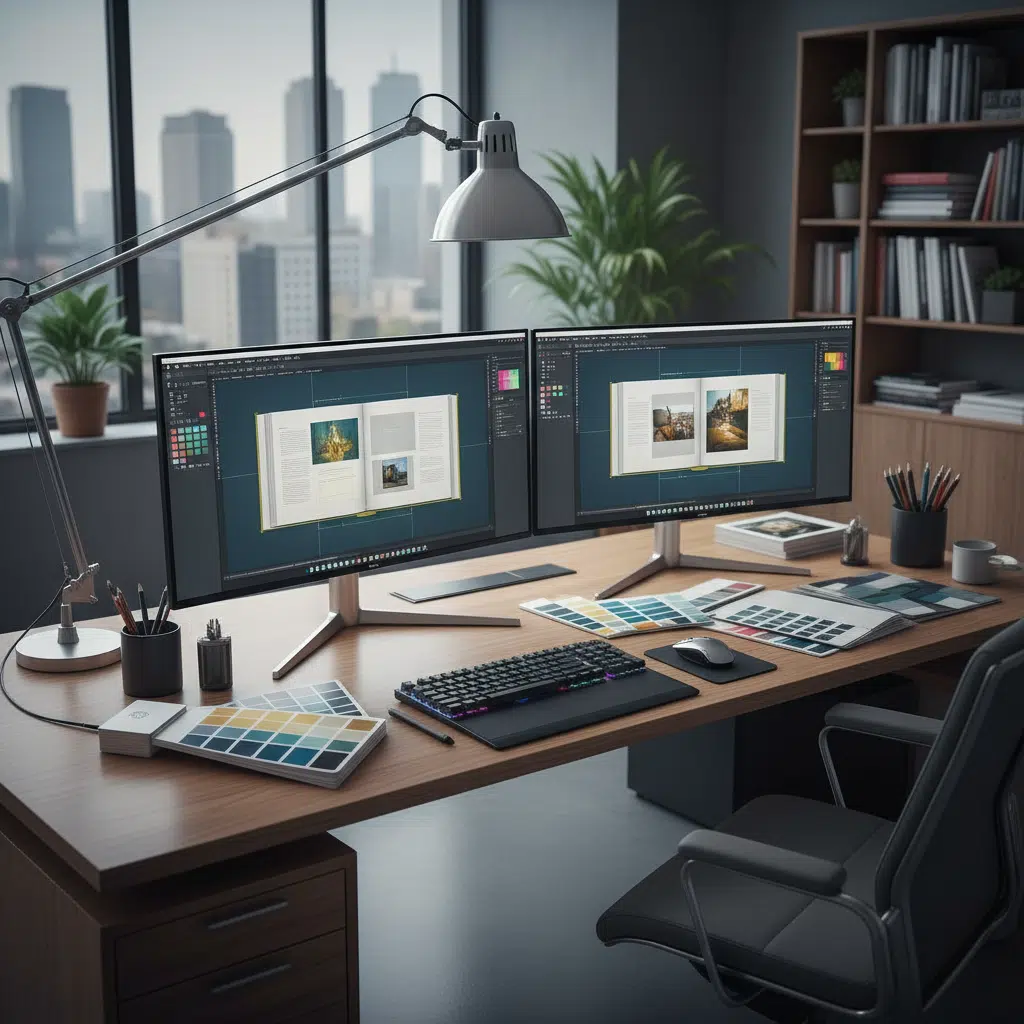
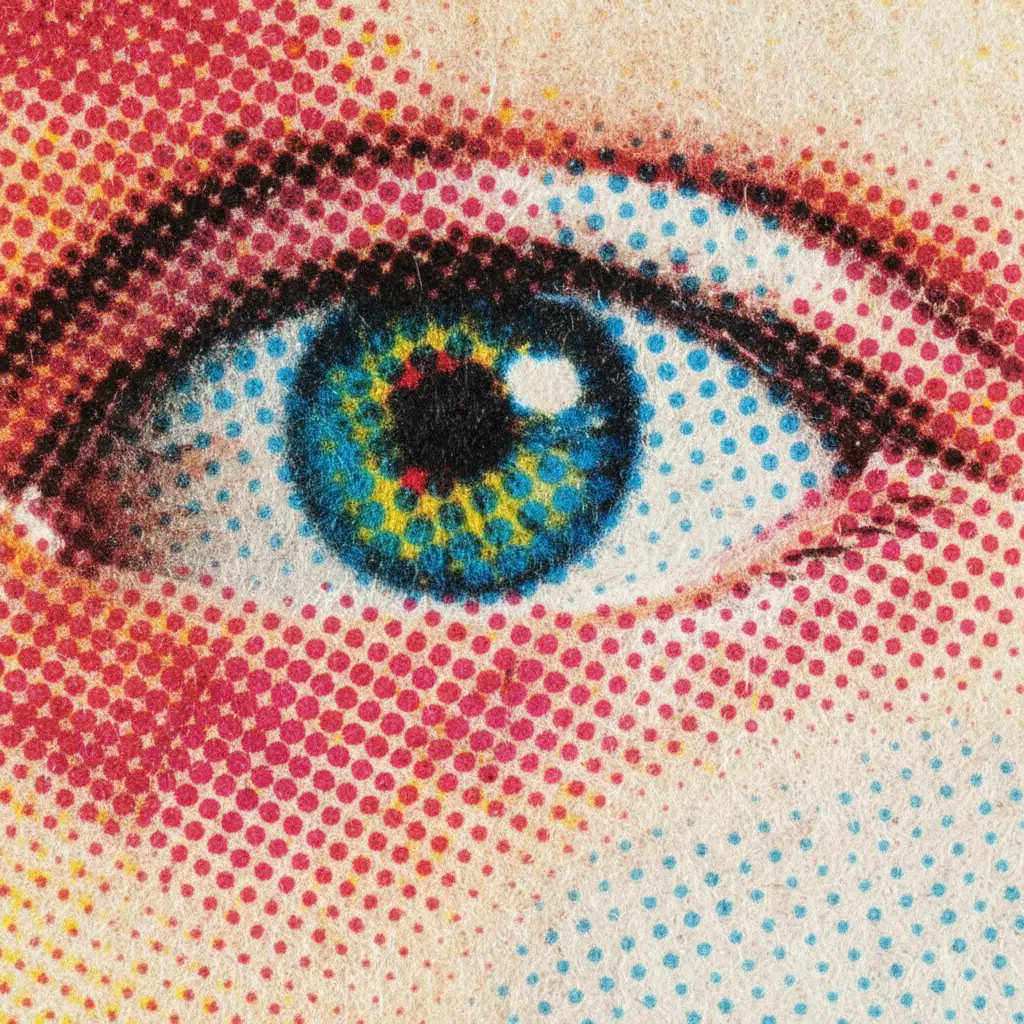
الخطأ الأكثر شيوعًا في إعداد الملفات هو تقديم التصميمات بتنسيق RGB (الأحمر، الأخضر، الأزرق). ويُعد RGB نموذجًا لونيًّا تراكميًّا يُستخدم للشاشات، حيث يتم إسقاط الضوء لتكوين الألوان. أما الطباعة الأوفست، فهي عملية طرحية تستخدم الحبر المادي على الورق، وتحديدًا عملية الألوان الأربعة: السماوي، والأرجواني، والأصفر، والأسود (Key)، والمعروفة باسم CMYK.
تغير نطاق الألوان
تقع العديد من الألوان الزاهية الشبيهة بألوان النيون التي تظهر على شاشة الكمبيوتر خارج نطاق ألوان CMYK القابلة للطباعة. إذا قمت بإرسال ملف بتنسيق RGB، فسيقوم برنامج التحويل (RIP) في مطبعة الطباعة بتحويله تلقائيًا إلى نظام CMYK. وغالبًا ما يؤدي هذا التحويل التلقائي إلى ظهور ألوان باهتة وغير واضحة لا تتوافق مع توقعاتك.
خطوة عملية: قم بتحويل أوضاع ألوان جميع الصور والمستندات إلى CMYK قبل الانتهاء من التصميم. إذا كنت بحاجة إلى لون معين خاص بالعلامة التجارية لا يمكن الحصول عليه عبر نظام CMYK (مثل الألوان الفلورية أو المعدنية)، فيجب عليك تحديد لون محدد من نظام Pantone (PMS).
2. الدقة: معيار 300 نقطة في البوصة
تبلغ دقة الشاشة عادةً 72 نقطة في البوصة (DPI)، والتي تبدو واضحة على الشاشة ولكنها تظهر مشوشة وغير واضحة عند طباعتها على مطبعة أوفست. وللحصول على طباعة احترافية عالية الجودة، يجب أن تكون جميع الصور النقطية (الصور الفوتوغرافية، والأنسجة) بدقة لا تقل عن 300 نقطة في البوصة بحجمها الفعلي عند الطباعة.
- الرسومات المتجهة: من الأفضل أن تكون الشعارات والنصوص بتنسيقات متجهة (AI أو EPS أو PDF). فالرسومات المتجهة لا تتأثر بالدقة وستظل واضحة مهما كان حجمها.
- تحذير بشأن توسيع نطاق البحث: لا تكتفِ بتغيير إعدادات الدقة لصورة منخفضة الجودة في برنامج «فوتوشوب». فهذا لا يضيف تفاصيل، بل يزيد من الضبابية فحسب. يجب عليك الحصول على ملفات عالية الدقة منذ البداية.
3. التخلص من الألوان الزائدة، والتشذيب، وهوامش الأمان
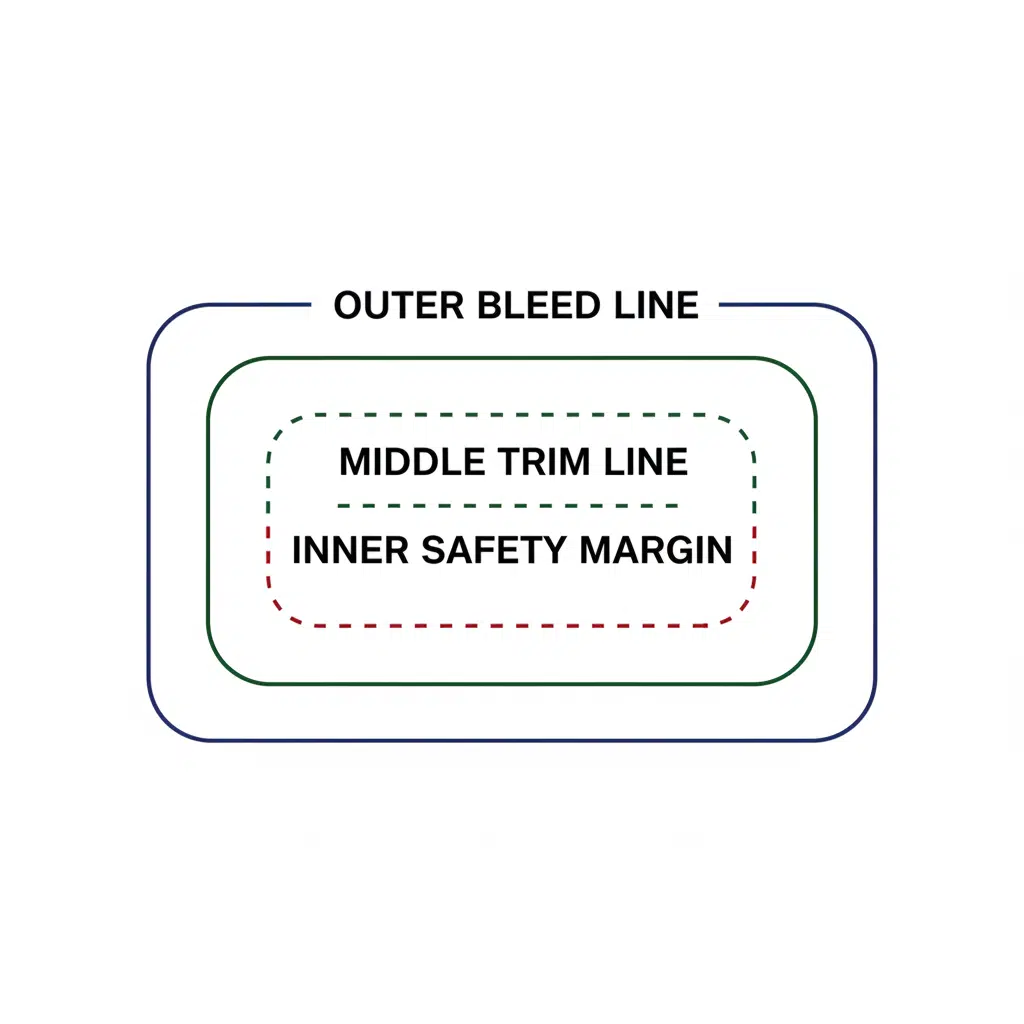
تتعامل آلات القطع الصناعية مع آلاف الأوراق في آن واحد. ورغم الدقة التي تتميز بها آلات القطع الحديثة، إلا أنه يوجد دائمًا تفاوت ميكانيكي (غالبًا ±1 مم). ولأخذ ذلك في الحسبان، يجب أن يتضمن ملفك عناصر هيكلية محددة.
فهم المصطلحات
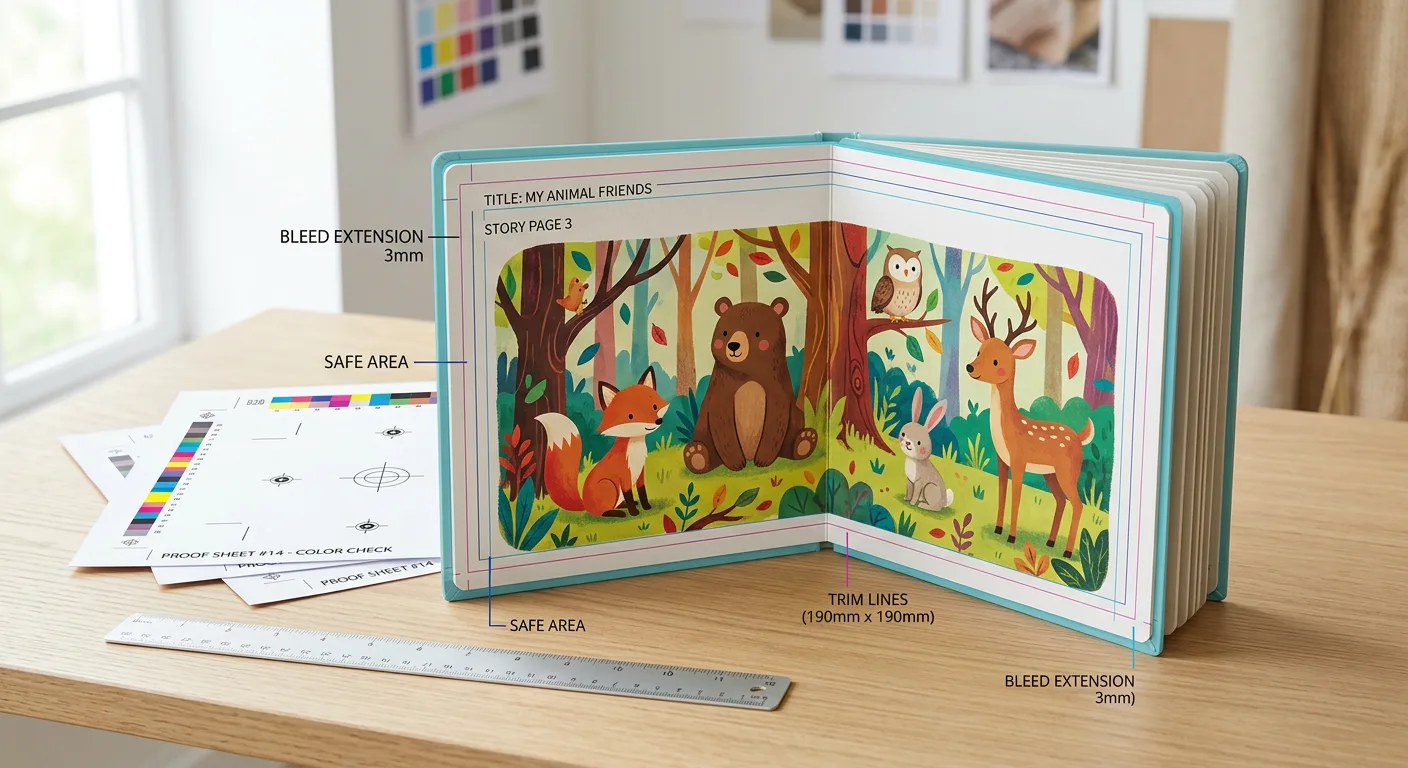
- خط التزيين: الحجم النهائي للمنتج بعد القص.
- منطقة النزيف: العمل الفني الذي يتجاوز خط القطع. وعادةً ما يكون التجاوز القياسي 3 ملم (0.125 بوصة) من جميع الجوانب. إذا كان تصميمك يحتوي على لون خلفية أو صورة تمتد حتى حافة الصفحة، فيجب أن تمتد هذه الخلفية إلى منطقة التسييل لمنع ظهور خطوط بيضاء رفيعة في حالة حدوث انحراف طفيف في القص.
- هامش الأمان (المنطقة الآمنة): منطقة عازلة داخل خط القطع، تتراوح عادةً بين 3 مم و5 مم. يجب أن تظل العناصر المهمة مثل أرقام الصفحات والنصوص والشعارات داخل هذه المنطقة لضمان عدم قطعها.
4. التعامل مع درجات اللون الأسود: الأسود الغني مقابل الأسود القياسي
في الطباعة الأوفست، لا تتساوى جميع درجات اللون الأسود. فقد يؤثر استخدام النوع الخاطئ من اللون الأسود على سهولة القراءة ومدة الجفاف.
أسود قياسي (100% K)
استخدم هذا من أجل النص الأساسي، والرموز الشريطية، والخطوط الرفيعة. وهي تستخدم الحبر الأسود فقط، مما يضمن حوافًا واضحة. إذا استخدمت لونًا أسود مركبًا للنصوص الصغيرة، فقد يؤدي الاختلاف الطفيف في محاذاة الألواح الأربعة إلى ظهور النص بشكل ضبابي أو محاط بهالات ملونة.
أسود غني (على سبيل المثال، C:60 M:40 Y:40 K:100)
استخدم هذا من أجل خلفيات كبيرة أو مساحات سوداء صلبة. قد يبدو اللون الأسود القياسي رماديًا داكنًا أو باهتًا عند تغطية مساحات واسعة. وتؤدي إضافة نسب مئوية من الألوان السماوي والأرجواني والأصفر إلى إنتاج «أسود غني» أعمق وأغمق. ومع ذلك، يجب تجنب تجاوز الحد الإجمالي للحبر (TIL) البالغ 300%، حيث قد يتسبب ذلك في حدوث تلطخ الحبر ومشاكل في التجفيف.
5. إعدادات تصدير ملفات PDF لأغراض التصنيع
عند الانتهاء من التصميم، تكون الخطوة الأخيرة هي تصدير الملف. نوصي بالالتزام بـ PDF/X-1a:2001 معيار مقبول على نطاق واسع في هذا المجال. يعمل هذا المعيار على إزالة الشفافية وتضمين الخطوط، مما يقلل من مخاطر حدوث الأخطاء.
قائمة مراجعة للتصدير:
- تضمين جميع الخطوط: تأكد من تضمين جميع الخطوط حتى يتم عرضها بشكل صحيح على نظام المصنع.
- تسوية الطبقات: يجب دمج الشفافيات المعقدة لمنع حدوث خلل في العرض.
- الصفحات المفردة مقابل الصفحات المزدوجة: بشكل عام، تتطلب الطابعات الملفات على النحو التالي: صفحات منفردة بترتيب متتالي، وليس على شكل صفحات مزدوجة (مثل الصفحتين 2 و3 جنبًا إلى جنب). وسيقوم برنامج الترتيب في المصنع بترتيب الصفحات استعدادًا لألواح الطباعة.
6. عملية التدقيق
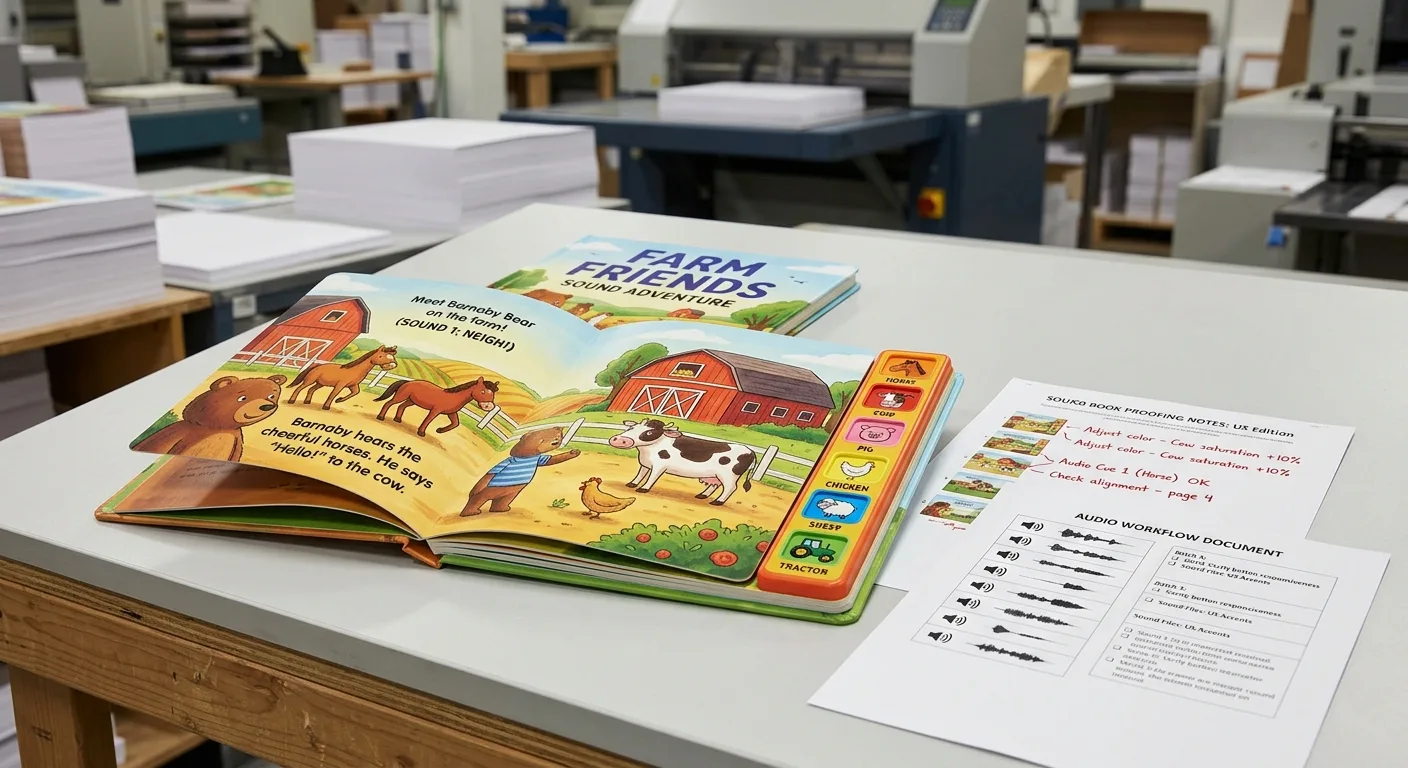
بمجرد إرسال ملفاتك، عادةً ما يقوم قسم ما قبل الطباعة بتقديم نسخة تجريبية. وفهم نوع هذه النسخة أمرٌ بالغ الأهمية لضمان الجودة.
- التدقيق اللوني (التدقيق الرقمي): ملف PDF تم إرساله عبر البريد الإلكتروني للتحقق من المحتوى ودقة النص وترقيم الصفحات. ولا يُعتبر دقيقًا فيما يتعلق بمطابقة الألوان بسبب الاختلافات في معايرة الشاشات.
- نسخة مطبوعة (مطبوعة رطبة أو طباعة رقمية): عينة مادية. تُطبع «نسخة تجريبية رطبة» على آلة الطباعة الأوفست الفعلية (وهو أمر مكلف)، في حين أن الطباعة الرقمية عالية الجودة (نسخة تجريبية من إيبسون) هي الطريقة الشائعة للتحقق من تقريب الألوان مقارنةً بالنتيجة النهائية.
ملخص: قائمة المراجعة الخاصة بمرحلة ما قبل الطباعة
| العنصر | المتطلبات |
|---|---|
| وضع الألوان | CMYK (لا تستخدم ألوان RGB أو الألوان المحددة إلا إذا كان ذلك مقصودًا) |
| القرار | 300 نقطة في البوصة كحد أدنى للصور |
| نزيف | 3 مم (0.125 بوصة) من جميع الجوانب |
| نص أسود | 100% K (C0 M0 Y0 K100) |
| تنسيق الملف | ملف PDF (صفحات منفردة، الخطوط مضمنة) |
الأسئلة الشائعة (FAQs)
هل يمكنني استخدام Canva لإنشاء ملفات مخصصة للطباعة الأوفست؟
على الرغم من أن Canva يعد أداة رائعة للمواد الرقمية، إلا أنه غالبًا ما يستخدم نظام RGB بشكل افتراضي ويفتقر إلى التحكم المتقدم في التجاوز وفصل الألوان. إذا كان لا بد من استخدامه، فتأكد من التصدير باستخدام إعدادات «PDF Print» واختيار «علامات القص والتجاوز»، لكن يُفضل استخدام برامج احترافية مثل Adobe InDesign في عمليات الإنتاج بكميات كبيرة.
ما الفرق بين الطلاء والتصفيح في إعداد الملفات؟
عادةً، لا تتطلب هذه التشطيبات إجراء أي تغييرات على طبقة التصميم الفني نفسها، ولكن إذا كنت تستخدم الطلاء بالأشعة فوق البنفسجية الموضعي (Spot UV) أو الختم بالرقائق المعدنية (Foil Stamping)، فيجب عليك توفير طبقة أو ملف منفصل باللون 100% K (أسود) يحدد بدقة المكان الذي يجب تطبيق التشطيب فيه.
لماذا تبدو الألوان مختلفة على الورق عنها على شاشتي؟
تنبعث الشاشات الضوء (RGB)، بينما تعكس الورقة الضوء (CMYK). بالإضافة إلى ذلك، يؤثر نوع الورق (المطلي مقابل غير المطلي) على امتصاص الحبر. فالورق غير المطلي يمتص كمية أكبر من الحبر، مما يجعل الألوان تبدو أغمق قليلاً وأقل حيوية مقارنةً بالورق المطلي اللامع.
هل يجب عليّ تضمين علامات القص؟
تفضل معظم شركات الطباعة المحترفة الملفات بدون علامات القص، شريطة أن يتضمن حجم صفحة المستند منطقة التسييل. ومع ذلك، يجب عليك دائمًا التأكد من ذلك مع مدير حسابك قبل التصدير.
يتطلب إعداد المخطوط للطباعة الأوفست الاهتمام بالتفاصيل، لكنه يضمن الحصول على نتيجة احترافية ومتينة تبرز في السوق. إذا كنت مستعدًا للانتقال من مرحلة التصميم إلى مرحلة الإنتاج، فإن فريقنا جاهز لإرشادك خلال جميع المواصفات الفنية.